
How can I clear/monitor stuck emails in ClinicOffice?
Have your emails stopped working?
You may have noticed an email error pop-up at the bottom of your screen. Emails can stop working for a number of reasons and often the fix is a simple one. Common causes include using an invalid password or entering an incorrect email address.
To help users better understand why their emails may not be sending, we’ve introduced the Outbox Monitor. This tool allows ClinicOffice admins to view all pending or stuck emails across all users and take appropriate action. It also shows the reason each email failed to send.
For example, if someone tries to send an email to joebloggs@gmailxyz.com, it would fail because gmailxyz is not a valid domain. Instead of calling support, the Outbox Monitor lets you correct the issue and resend the email quickly and easily.
To access the ‘Outbox Monitor’, go to your Email Manager, then Email Settings, then Outbox Monitor. The window below will appear:
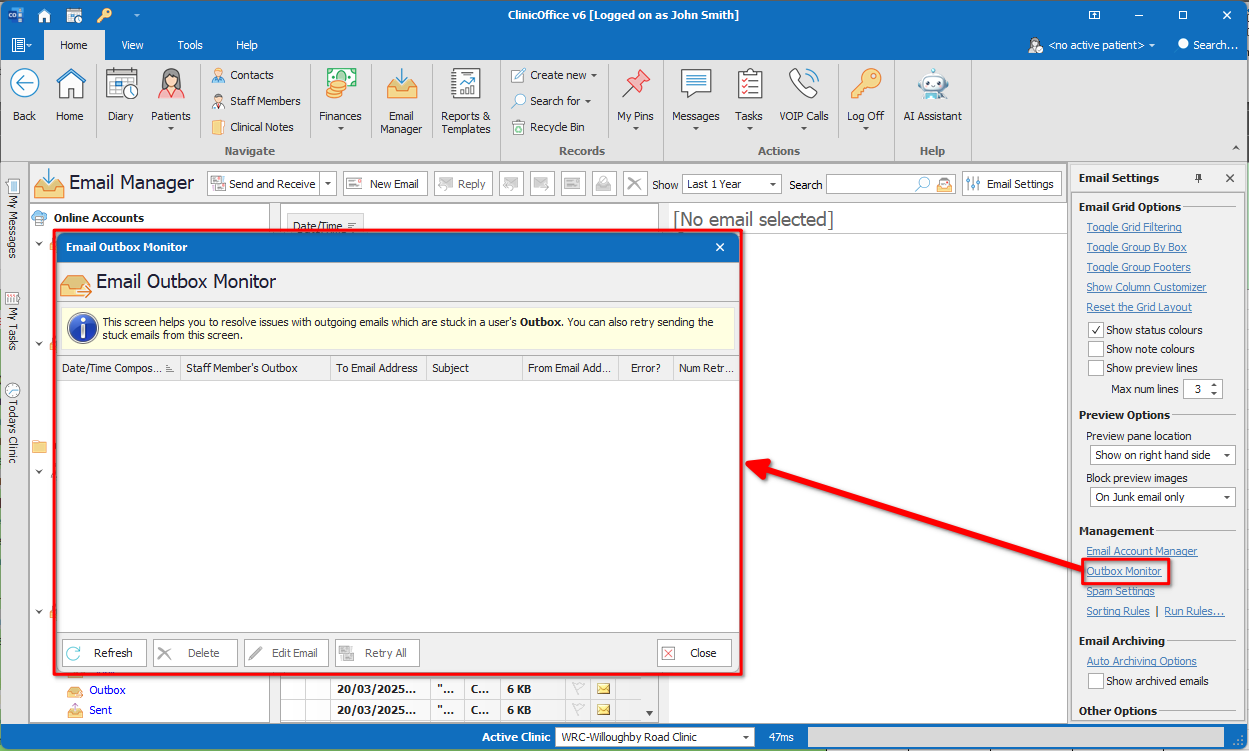
Although the error is being displayed in ClinicOffice, the error given here is merely relayed back from your Email provider. In the example above, it states that either the username or password is not accepted, meaning that either one is wrong. This message is being relayed in this instance back from Google Mail’s server. The error does vary depending on the problem and it might be the case that you have more than one email stuck in the outbox for different reasons.
From this window, you can select to edit the email to correct the problem, if the problem is an invalid email address for example. Once you have made the necessary correction you can select to Retry All and ClinicOffice will attempt to retry sending all emails stuck in the outbox.
Please Note Only Supervisors/Administrators within,
ClinicOffice have access to this screen.