
Appointment Contact Rules – Triggers
Although appointment rules are simple when considered individually, they can become complicated when used together, making the results harder to understand. This article clearly explains the purpose of each trigger field so that, when these settings are used together, you can achieve the desired result for when a contact rule sends a message.
If a rule does not seem to be working as expected, it is often best to review these settings. In our experience, 99% of the time the rule is functioning correctly, but confusion arises from how these settings interact.
Appointment Booking
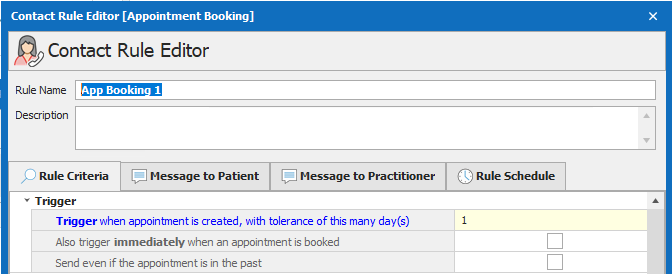
Trigger when an appointment is created, with a tolerance of X day(s)
This tolerance relates to the appointment creation date, not the appointment date.
- 0 = created today only
- 1 = created today or yesterday
- 2 = created today, yesterday, or the day before
- …and so on
Also trigger immediately when an appointment is booked
- The rule will trigger automatically, even if there is no scheduled run date.
Send even if the appointment is in the past
If the rule runs due to either of the triggers above, and this option is not selected, then past appointments will not receive a message.
If this option is selected, then past appointments will receive a message. This is based on the appointment date being in the past, not the booking date. The trigger logic is still based on appointment creation date.
- Example: if an appointment from a year ago is booked today, it will send a message but only if “Send even if the appointment is in the past” is enabled.
-
-
- The rule sends a message once for the appointment if triggered and cannot be reset to run again.
- Other appointment booking rules will run again on the appointment if triggered as they are different rules.
-
Appointment Reminder
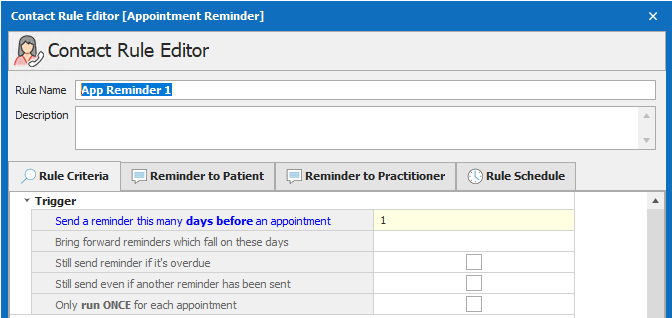
Send a reminder this many day(s) before an appointment
This relates to the appointment date, not the appointment creation date.
0 – Appointments that day
1 – Appointments tomorrow
2 – Appointments the day after
… and so on
Bring forward reminders which fall on these day(s)
If the reminders are set to send on a day when the clinic is closed and the rule will not be run.
Problem
A next day appointment reminder has been created and there are appointments for Monday but the clinic is closed on Sunday. Therefore the rule will not run as no one will be logged into ClinicOffice. On Monday the rule runs but this leaves little notice for patients.
Solution
Select Sunday from the list of day(s) and now when the rule runs on Friday it will look for reminders that would have been sent on Sunday for Monday’s appointments and send them on that Friday.
Quick Tip
We generally recommend selecting the days the clinic is closed. This option is very useful for bank holidays as this often catches clinics out.
Still send reminder if it’s overdue
If selected the rule will send reminders for appointments from the target date to the current date so any appointments reminders that were missed will no receive a message.
e.g. It is Monday and an appointment has been added for Tuesday. The rule is set to run two days before the appointment. If this is not selected the reminder won’t send as it’s outside the criteria. If selected it will send reminders for any appointments that have not received reminders from the Wednesday (target day) to the Monday.
Still send even if another reminder has been sent
When a reminder is sent for an appointment it is flagged as having had a reminder sent. This appears as the bell and time icon on the appointment in the diary. By default reminder rules won’t trigger for appointments that have had reminders. You can override this by ticking the box. Now even though a reminder has been sent an additional reminder will be sent by this rule. The reminder details against the appointment will be updated to show the date this rule sent a message.
Note. You can clear the reminder from an appointment by opening the appointment, clicking on reminder options at the bottom of the window and selecting clear. Now the first appointment reminder that is triggered against this appointment will update the details and set the reminder as sent again.
Only run ONCE for each appointment
Every time a reminder is sent it is logged against the appointment. So if Still send even if another reminder has been sent is ticked or the reminder is cleared and this is selected the reminder will only ever run once for this appointment.
Appointment Rule
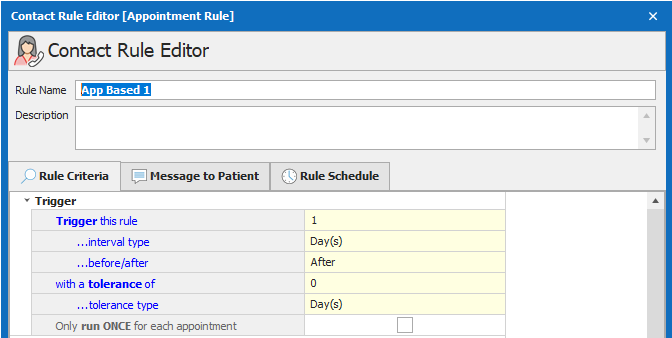
This rule’s triggers are based on the appointment date in comparison to the current date. Adding a tolerance to the rule will increase the window for when this rule will run helping with situations such as holidays and weekends.
Trigger this rule
This figure is the number of unit types that will be used in the next setting. If Day(s) is selected next and 5 is used then this would represent five days before or after the appointment date.
interval type
This is the interval type that will be applied for the figure above. It can be days, weeks, months or years.
Before/after
Should the above settings be applied before or after an appointment date.
with a tolerance of
This figure is the number of unit types that will be used in the next setting. If Day(s) is selected next and 1 is used this would mean a window of one day either side of the target date would be used (the day before, the target date and the day after).
tolerance type
This is the tolerance type that will be applied for the figure above. It can be days, weeks, months or years.
Only run ONCE for appointment
As each time a rule sends a message against an appointment it is logged, you can ensure the rule only ever runs once against the appointment.