
How to Change Default Paper Size on a Layout Report
-
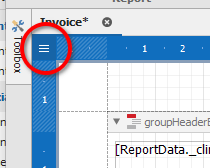
Click the three bars at the top-left of the report (circled in red).
-
In the menu that appears, find the “Measure Units” option and select “Tenths of a Millimetre”.
-
On the right-hand side, look for the Properties panel.

-
Locate the “Paper Kind” field and open the dropdown menu.
-
If you can’t see this field, go back and make sure you did step 1 correctly.
-
-
Choose the Paper Kind you want. The report size will update automatically.
-
You may need to reposition your fields after changing the size.
-
-
If none of the default paper kinds work, select “Custom”:
-
Enter your desired Page Height and Page Width.
-
The report will resize accordingly.
-
-
Once everything is adjusted, click the Save button to keep your changes.