[1] Click on the Reports and Templates button at the top of ClinicOffice.
[2] Right-click on the layout report (i.e. Invoice report), and select Design Report.
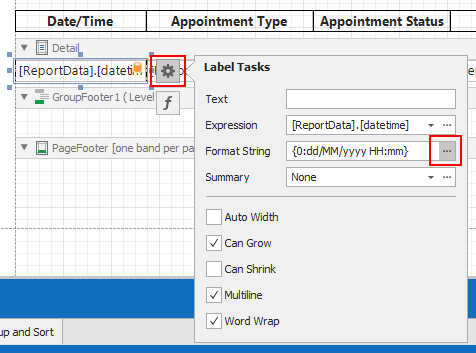
[3] A new window will open up allowing you to edit the Report/Template, left-click on the label which displays the Date. This will select the label and you’ll notice a small ‘smart tag’ appear at the top right of the box (it looks like a little mechanical cog symbol”>”). Left-click the ‘smart tag’ to bring up a menu.
[4] Click the button (with 3 dots …) next to the Format String
[5] Make sure DateTime is selected in the Category section. Click the Standard Types tab. You can then select from a list of options on how you want your date set out, including or excluding time. Once you’ve chosen your preferred option click OK.
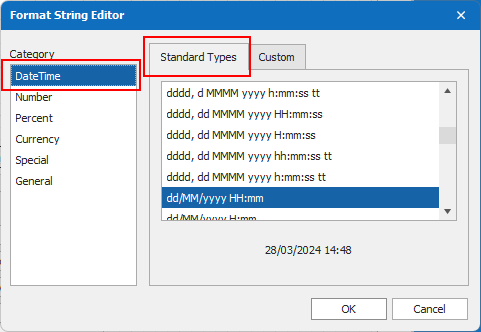
Alternatively, you can click the Custom formats tab (rather than the Standard Types) and simply select the “d” option, this stands for default which will use your Windows Regional Settings to display the date in the standard format.

