ClinicOffice v4 uses dictionaries in the OpenOffice format. The advantages of OpenOffice dictionaries are that they are available for free and are constantly updated, since they are a part of an open source project.
Here’s a link to the available Dictionaries : http://wiki.services.openoffice.org/wiki/Dictionaries
<u>STEP-BY-STEP GUIDE : Installing a new Dictionary</u>
Here’s a quick step-by-step guide to show how to add a dictionary to ClinicOffice. In this example, we’ll be adding a Dutch dictionary to ClinicOffice (to help the many ClinicOffice users in the Netherlands!)
[1] Download the required dictionary from here (for this example, we’ll download the “nl_NL.zip” file)
[2] Run ClinicOffice, click VIEW | CLINICOFFICE SETTINGS. Under the “Spell Checker” section, click the link to “Open the ‘Dictionaries’ folder in Windows Explorer”.
(The default location of this folder for ClinciOffice v5 will be C:COv5_Data_settingsdictionaries)
(The default location of this folder for ClinciOffice v4 will be C:COv4_Data_settingsdictionaries)
[3] Open the downloaded ZIP file (from [1]) and extract the files into the Dictionaries (from step [2])
[4] Close down and re-start ClinicOffice (this is necessary so that ClinicOffice will find the new dictionary files).
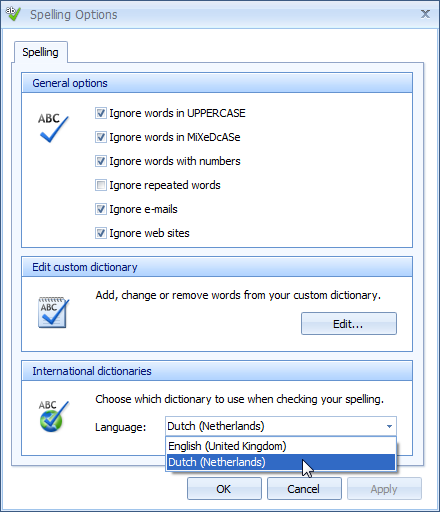
[5] In ClinicOffice, click VIEW | CLINICOFFICE SETTINGS and this time click the link “Spell checker options”. You will now see that your new dictionary is installed and can be selected from the list, as shown below :-