
-
AuthorPosts
-
April 15, 2015 at 9:14 am #31553
Hi there,
To create an Appointment Booking Rule, please follow the steps below: –
* Open ClinicOffice
* Open the Contact Centre (located at the top under the patients button as a drop-down)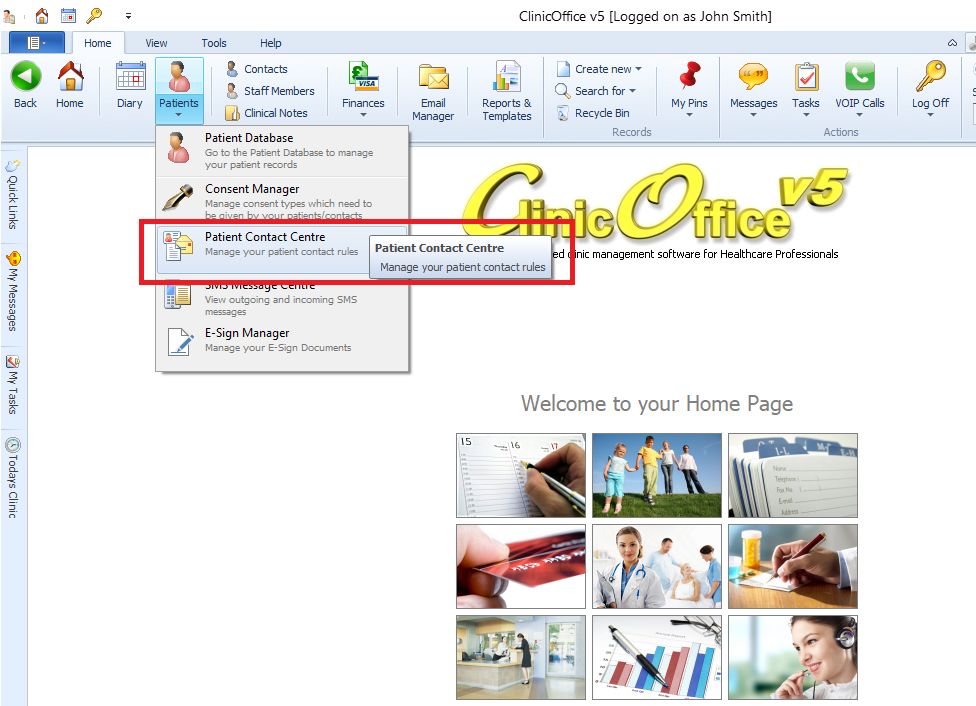
* Click Create New Rule
* Select Appointment Booking Rule
* Give the new rule a name and if you wish a description
* For this example select Automatic located under Rule Scheduling. If you want ClinicOffice to ask for your permission before it runs the rule you would then select Reminder.
* Under the Run Every keep it at 1 day(s) at 8:00
* Where it says Next run is scheduled for set it to tomorrow’s date at 8:00
* Further down where the text says Trigger this rule…..the number of days determines the creation date of an appointment. (So a tolerance of 7 days means the rule will look at appointments 7 days before the rule was created)
* Click on the blue link which says [Click here to setup] (towards the bottom).
The Appointment Booking window will open.
* For the next step you need to click SEND AN EMAIL. You may need to configure your SMTP settings if you have not done so already.
* Enter your message in the field below
* For any values such as the patient’s name, date/time of the appointment or staff member’s name use the Insert fields. To do this click the Insert button and select the relevant field. This will now be inserted into the message and will generate the relevant information for the patient.
* Once you are finished click OK and OK againRemember that this is only a rough outline and you can set the Appointment Booking rule up with additional options. It might be an idea to look through each of the options.
-
AuthorPosts

- You must be logged in to reply to this topic.