
-
AuthorPosts
-
December 1, 2021 at 10:17 am #38612
We have recently introduced a new feature to the online diary that allows for patients to upload documents to their record within ClinicOffice.
To do this, you will need to have the Web Edition add-on as part of your package, along with the Documents Module. Instructions on how to configure the diary are accessible via our Online Diary User Guide.
Step 1 – Enabling The Feature
Once the above is in place, you will need to enable the feature.
To do this, log on to the Web Edition using your ClinicOffice credentials, click on the Settings
 button on the left menu bar, and click on Admin Settings.
You will then see six tabs running across the top of the screen. Click ‘Patient Portal’ as below.
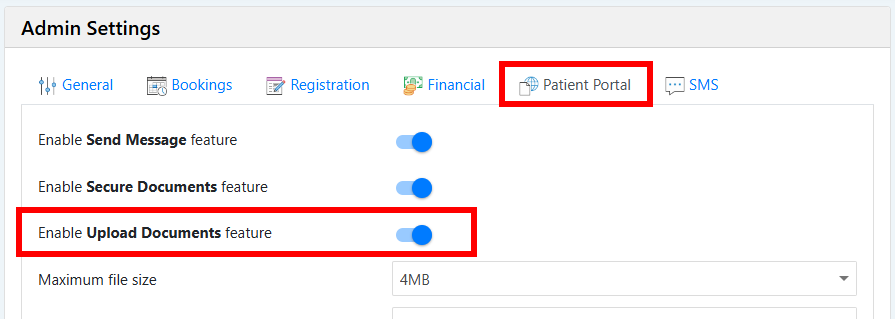
Next, switch the slider on for the option, ‘Enable Upload Documents feature’.
You can make changes to some further settings at this point, and once you’re happy click Save, and patients will now see a new option within their login for document uploads.
Step 2 – Instructions for Uploading
When a patient logs on using their details, they will now see a new menu item on the left panel called ‘Upload Documents’ button.
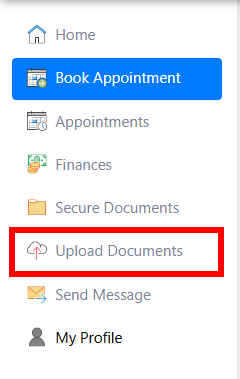
Clicking on that will display the following screen.
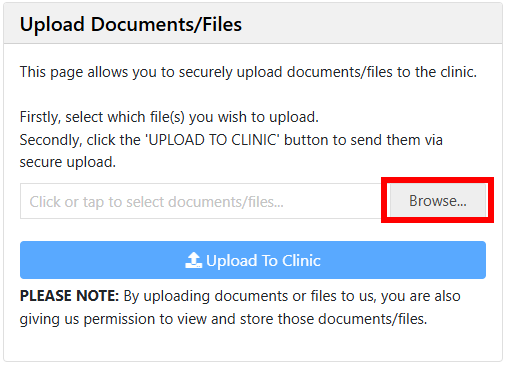
From here, the patient simply needs to click Browse and locate the folder on their device that they wish to upload and select to Open it.
Once selected, they will need to click ‘Upload To Clinic’.
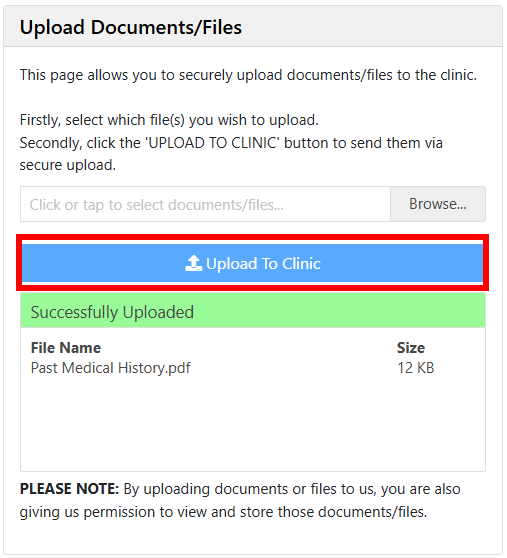
They will then receive a success message on completion. The document has now been securely uploaded into your ClinicOffice database.
Step 3 – Retrieving the uploaded document
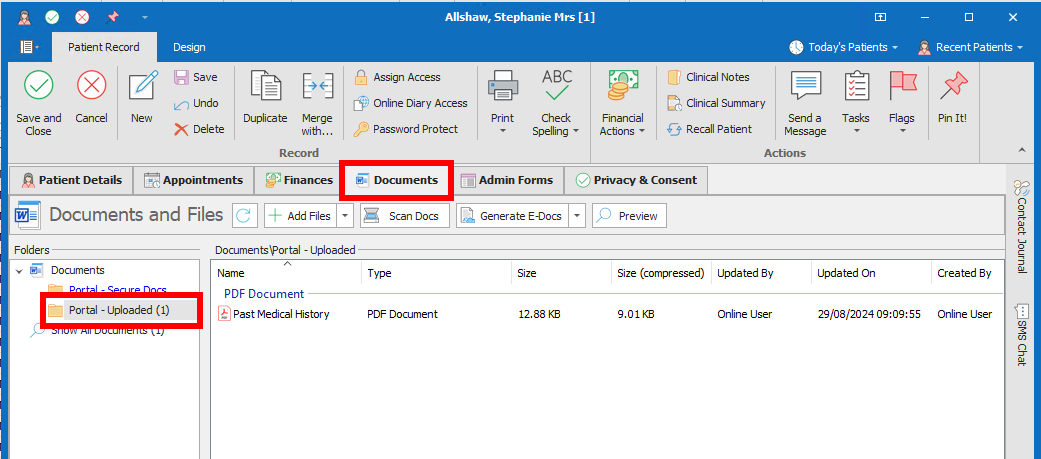
Once the patient has completed the upload, the documents will appear in the Documents tab on their record inside a folder called Portal – Uploaded as shown below.
Please reply to this forum post if you have any questions!
-
AuthorPosts

- You must be logged in to reply to this topic.